
Check which number customers will see
On the Mac, open Messages → Settings → iMessage. Under You can be reached for messages at, look for your iPhone number. Under Start new conversations from, select the number you want for new threads. If only an email address is available, finish setting up the phone number in Messages before pairing.
An existing thread can keep the identity that started it. Changing the default applies to new conversations. If your team uses two lines, confirm the sender on a receiving phone before using a second line for customer replies.
Apple’s instructions for making your phone number available in Messages
Pair the Mac with the right business account
Open LinePort in your CRM business account. On the same Mac, choose Open LinePort to pair. If you have the CRM open on another computer, copy its pairing code, open the LinePort menu on the Mac, paste the code, and press Return.
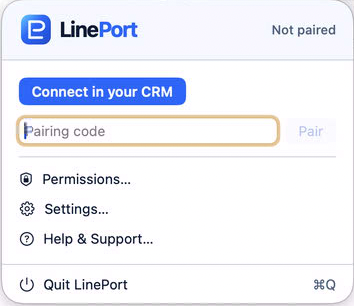
Each business account connects to one Mac. Pairing another Mac replaces the existing connection. Finish the three Mac permission steps and leave the Mac awake and online.
Verify one conversation before connecting more
- Choose a test contact who agrees to receive a message. Use Review first to choose the individual conversation you want to connect.
- In the CRM, open the contact’s conversation, select the LinePort channel, and send a short message. If the composer asks for a phone number, check the selected channel.
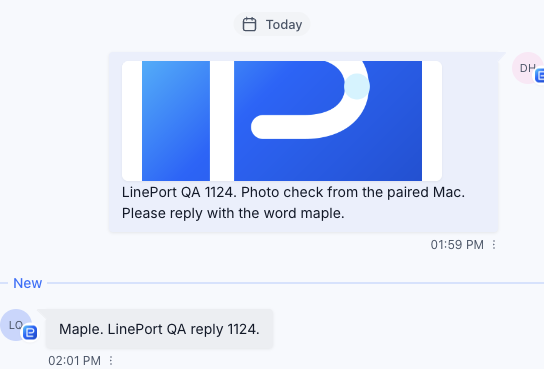
- Ask the recipient which number or email appears as the sender. If their phone shows only your saved name, have them check the conversation details. Ask them to reply with a word you both recognize, then look for it in the same CRM conversation.
- To check photos, send a test image from the same CRM conversation and ask the recipient to open it. If the CRM shows Unknown, check the Mac and receiving phone before sending it again.
What happens with a green bubble?
Phone numbers can use carrier messaging when the iPhone forwards texts to the Mac. On the iPhone, check Settings → Apps → Messages → Text Message Forwarding and enable the paired Mac. An email address uses iMessage. Bubble color alone does not identify the carrier service or prove delivery.